
Account Setup and Login
Your first introduction to accessing the Archie Admin Workspace will most likely be an invitation email that provides a link to “Activate your user account”. Alternatively, if you already have an account on the Archie Platform, you can go directly to yourdomain.com/wp-admin to login.
Activating your account
To activate your account, click on the link provided to “activate your account” in the automated activation email you should have received.
This will direct you to a confirmation screen that will look similar to :

Take note of the temporary password, you will need this to login for the first time and to customize your password.
Select “login” and you will be directed to your sites admin login screen at yourdomain.com/wp-login.php. Use the temporary username and password provided.
Login Screen

Using your temporary login information, login to the platform. If you have trouble logging in, you can reset your temporary password.
Setup Two Factor Authentication (2FA)
After successfully logging in for the first time, you should be redirected to your profile preferences page to setup Two Factor Authentication.
Security is important to us (and you). ALL accounts that have the ability to edit content or make site changes MUST have 2FA enabled. No exceptions.
Following the onscreen directions to enable, then setup 2FA
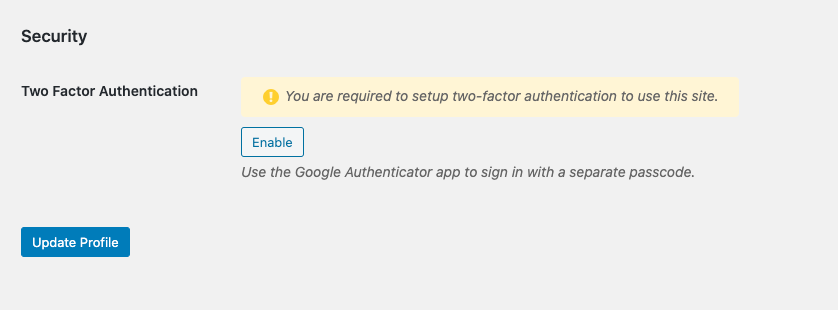
In order to authenticate using 2FA, you will need to install the Google Authenticator app.
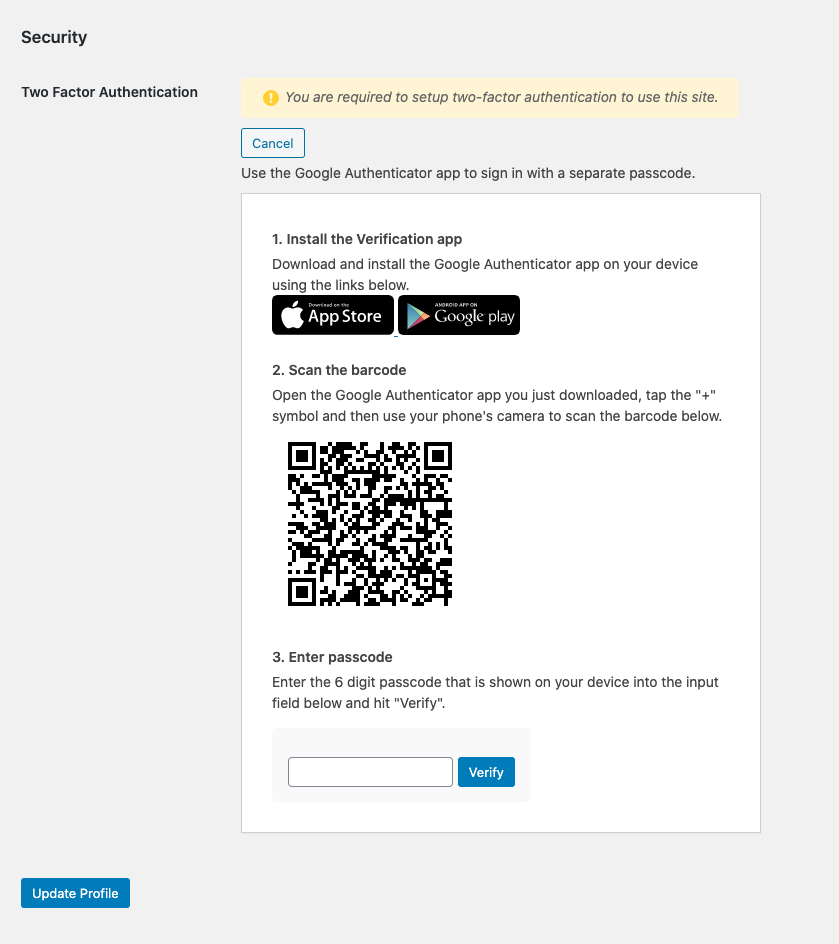
Once 2fa is setup and enabled, you can now access and administer your Archie site within the Archie Admin Workspace.
Learn more about: