
Actions Overview
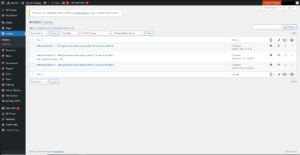
The actions section is one of Archie’s Dynamic content sections that allows for prominent styling of action cards to highlight key activities for users on your site via a ‘Take Action’ landing page. The individual action pages display the content on the left panel, then have space for a form embed on the right side.
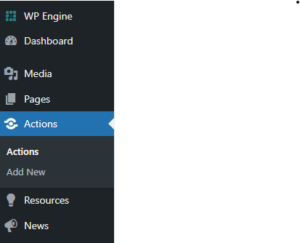
Navigate to the actions section in the left-hand menu of the admin.
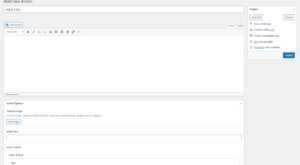
Select an Action to edit or ‘Add New’. Give the Action a title and add content to the WYSIWYG editor. You have the same WYSIWYG capabilities in this editor as you do with the standard WYSIWYG component.
Action Options
Featured Image
Upload a 2000 pixel wide landscape image to be used as the thumbnail images on the action card and the main image on the action detail page.
Button Text
Call to action text that appears on the card buttons.
Action Embed
This is where you will add your form to the page. It can be one of our default integrations (ActBlue, ActionNetwrok, EveryAction or MailChimp), or it can also be custom HTML. The custom HTML option will accept most standard embed codes from third party providers.
Offsite Link
This option allows you to link to an external webpage. Once the box is checked, add the external URL.
Take Action Page
The Actions landing page can be edited from the main ‘Pages’ menu in the admin. It will have the page template set to “Action Landing”. You can edit the page title, add a subtitle that appears in the page header and/or add a hero image to this page.
Subtitle
Add a brief subtitle or description for your action page.
Hero Images
Options for desktop and mobile hero images for the action landing page.
Actions Listing
Here is where you would select your actions that you want to display on the landing page. You do not have to choose all actions. Select an action from the left listing to activate it to display. The actions listed in the right column are the active actions displayed on the landing page. The action cards will display in a grid with three columns on the page.