
News Overview
The news section is one of Archie’s Dynamic Content sections. The section is dynamic in that adding a single news article will automatically add the article to the news listing page and make it available for use in the news feed component.
Navigate to the news section in the left-hand menu of the admin.
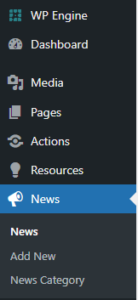
Select an article to edit or ‘Add New’. Give the article a title and add the articles content to the WYSIWYG editor. You have the same WYSIWYG capabilities in this editor as you do with the standard WYSIWYG component.
Post Options
Featured Image
Upload a 2000 pixel wide landscape image to be used as the thumbnail images on the new landing page and news feed component as well as the key image on the article page.
News Categories
Select one or many news categories to assign to the article. You can set up new categories by navigating to the News Category sub menu in the left-hand navigation.
Offsite Links to Publication
This option allows you to link to an external webpage. Select that option and the content in the WYSIWYG will not show and will instead redirect to the offsite link. Once the box is checked, add the external URL and the publication name for attribution. Note that adding a link here will not automatically pull in any image from the article itself.
Excerpt
This is an optional field for the excerpt text that displays in the news landing page and news feed components. If left blank, the first ~180 characters from the details WYSIWYG will display instead.
Related News
Select the type of related news articles you would like to display. Note that this setting needs to be configured initially in the back-end, so please contact us if you’d like to start using the related feature!

Site Options Configuration
Additional settings to manage news are contained within the site options menu.
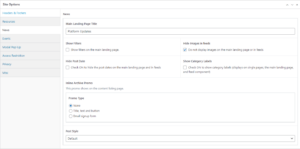
Main Landing Page Title
Optional field to update the title on the news landing page.
Show Filters
This box must be checked if you would like filters to display on the news landing page. Once this box is checked you must also select which filters you would like to display under ‘Featured Filters’.
Hide Images in Feeds
This check box will hide all images in the news landing page feed as well as on the news feed component. Images will still display on individual article pages.
Hide Post Date
Check this box to hide the post date from displaying on the news articles.
Show Category Labels
Check this box to show category labels on the individual news articles.
Feature Filters
Select the filters to display on the news landing page.
Inline Promo
This is an optional promo that breaks up a news feed when there are more than six articles on the page. You can use this for a CTA, or other content. Turn on this promo to add your content.